Subtitles And Transcription
Generate editable subtitles for tutorials, launch clips, and Shorts.
Fraime.it can transcribe speech into subtitle segments with word timing. Transcription runs on your Mac, though model files may be downloaded when first needed.
Subtitles help viewers follow technical videos without sound and make short-form clips easier to understand when watched quickly.
Generate subtitles
Open the subtitle controls in the editor and start transcription. When the pass completes, review the generated segments in the timeline and preview.
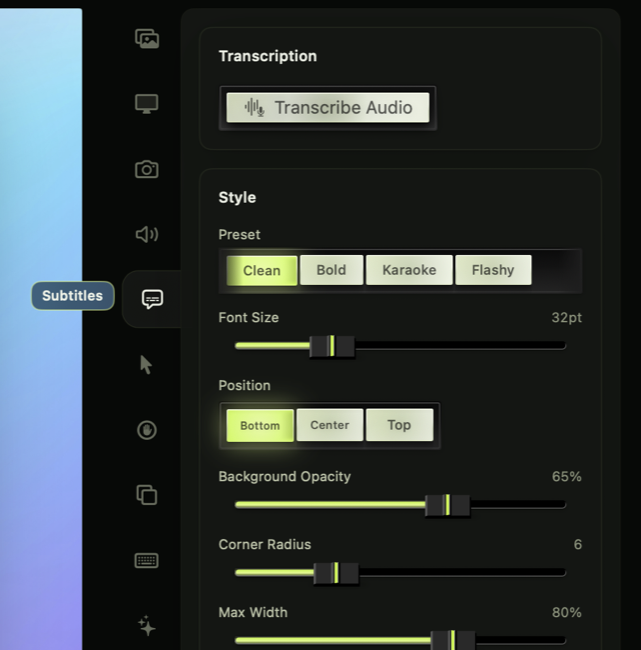
Start transcription from the subtitles inspector, then tune preset, placement, size, opacity, width, and colors before export.
For best results, record clear microphone audio and reduce background noise before transcription. If the first transcription pass is based on noisy audio, expect more manual cleanup.
Edit timing and text
Subtitles are timeline elements. Adjust text, timing, and styling when the automatic transcript needs cleanup or when you want a punchier caption for a short-form clip.
Keep each subtitle short enough to read at playback speed. Split long sentences, remove filler when it does not affect meaning, and rewrite captions that are technically correct but too dense for video.
Style subtitles
Use subtitle style presets or inspector controls to tune typography, placement, width, background, corner radius, and visual weight. The Shorts template applies a bolder style for vertical video.
Use stronger subtitle styling for Shorts and social clips. Use calmer styling for documentation videos where the screen content is the main subject.
Avoid covering UI
Subtitles can hide controls, code, command output, or redaction masks. Watch sections with important UI and move subtitles if they cover the thing you are explaining.
Use subtitles with smart edits
Transcript words also support smart edit suggestions such as filler-word cuts. Review suggested edits before applying them so the pacing still feels natural.
Smart edits are most useful after transcript cleanup. If words are misrecognized, fix important transcript text before relying on filler-word suggestions.
Export with captions baked in
Subtitles render into the exported video. If you need platform-native captions, keep a separate transcript as part of your publishing workflow.
Review checklist
Before export, check:
- Names, product terms, and commands are spelled correctly.
- Captions appear long enough to read.
- Captions do not cover important UI.
- Styling is readable on both dark and light parts of the screen.
- Shorts captions stay within mobile-safe areas.
Troubleshooting
If transcription fails, confirm the project has usable audio and that any required model download completed. If text is inaccurate, improve the source audio where possible and manually correct important terms. If subtitles lag after timeline edits, review nearby subtitle segment timing.