Shorts And Vertical Export
Use Fraime.it to turn a walkthrough into a 9:16 short-form video.
Fraime.it includes a Shorts workflow for launch clips, social posts, and short product demos.
Shorts work best when they focus on one outcome. If the full walkthrough explains a whole feature, the vertical version should usually show the hook, one proof point, and a clear ending.
Apply the Shorts template
In the editor toolbar, choose the Shorts template. It sets the project to a 9:16 canvas, chooses a 1080 x 1920 MP4 export, tightens the background framing, applies a bold subtitle style, adds an opening hook title card, and places the webcam for a vertical layout.
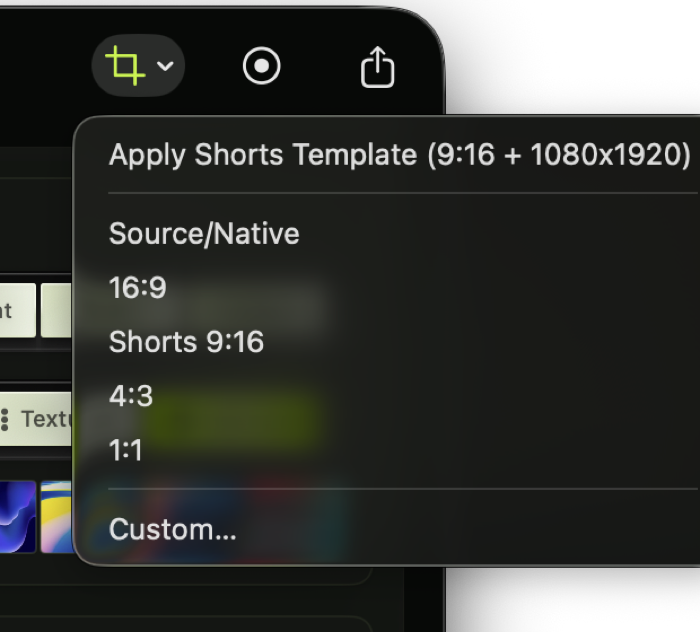
The ratio menu includes the one-click Shorts template as well as manual aspect-ratio options for vertical clips.
After applying it, scrub the timeline from the beginning. Template defaults give you a strong starting point, but you should still check title text, subtitle placement, webcam overlap, and whether the screen content remains readable in a narrow frame.
Choose an aspect ratio manually
You can also choose aspect ratios without applying the full template:
- Source or native
- 16:9
- Shorts 9:16
- 4:3
- 1:1
- Custom
Manual aspect changes are useful when you want vertical framing without changing subtitles, webcam layout, or title cards.
Prepare the clip
Short-form videos usually need a faster opening than long tutorials. Trim setup time, add a title or hook, use subtitles, and keep the visual focus on one idea.
Build a short-form structure
A simple structure works well:
- Hook: show the result or state the problem.
- Proof: show the key interaction or transformation.
- Payoff: show the final screen, result, or viewer takeaway.
For developer demos, avoid starting with installation, setup, or navigation unless that is the point of the clip.
Keep text readable
Vertical video makes screen UI smaller. Use zoom, crop/framing, callouts, and subtitles to reduce how much the viewer has to read. If code is too small, show only the relevant region instead of the whole IDE.
Export vertical video
Use 1080 x 1920 for the highest-quality vertical preset or 720 x 1280 for a smaller file. MP4 with H.264 is the safest default for social platforms.
Platform-safe review
Before publishing, check the video with mobile overlays in mind. Keep important subtitles and UI away from the very bottom where platform captions, buttons, or descriptions often appear.
Reuse the same project
You can keep a full walkthrough and a short-form export in the same project workflow by duplicating the project or saving a separate edit before applying aggressive vertical formatting.
Troubleshooting
If the recording feels too small in 9:16, add zoom or reduce background padding. If subtitles compete with the UI, move them higher or reduce max width. If the webcam blocks controls, switch to a smaller picture-in-picture layout or remove the background so it takes less visual space.